
Overview
This section provides an overview of what students see when they log in to Pulse. Teachers can also access the student view via the class roster page.
Join a class #
As a student, when you log in for the first time, you may already see classes that your teacher has enrolled you in. If you don’t see your class, you can add it by entering a class code, which your teacher can provide:
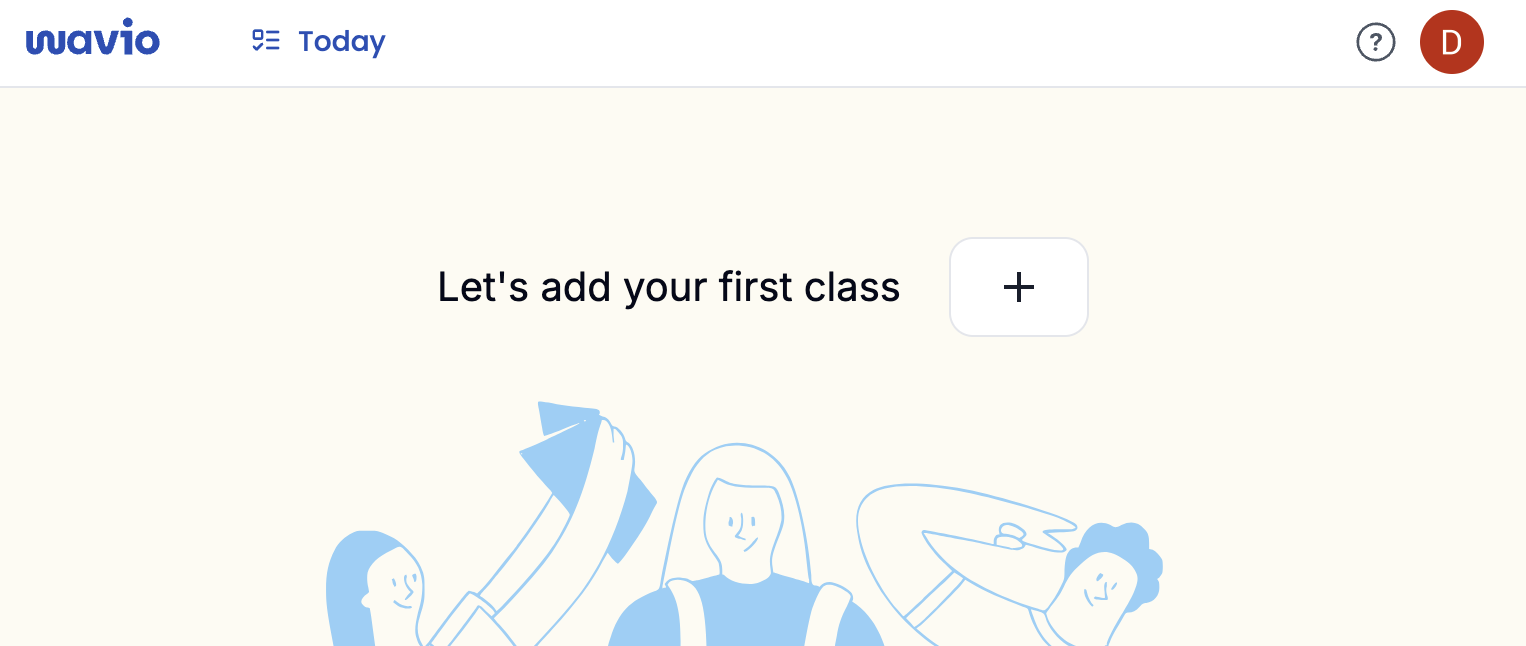
Class activities #
Once you’ve added a class, click on it to see your current assignments and progress.
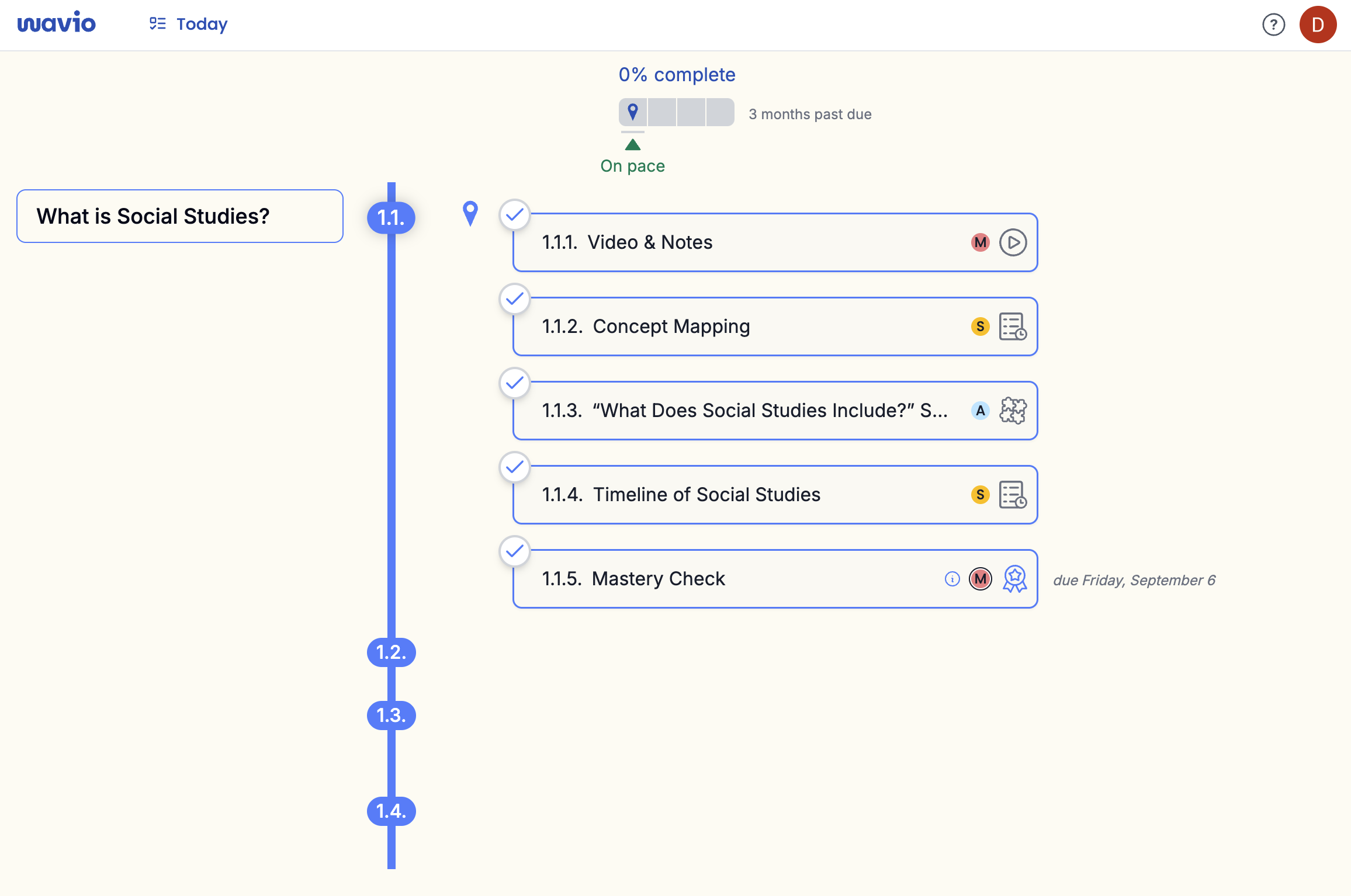
Overview #
- Scroll to the upper left corner for a drop down of the units in the class.
- The lessons for the selected unit appear as a timeline along the left side of the page.
- The lesson label (if any) is indicated in the timeline bubble, and the current lesson is indicated with a name bubble to the left.
- Hover over the timeline to show the other lessons names.
- Click on a timeline label or name to open the lesson.
- The lesson timeline for the selected unit is also summarized at the top of the page as a progress bar.
- Activities are listed in the center of the page.
Current Unit / Lesson / Activity #
When you open a class, Pulse will automatically open to your current unit, lesson, and activity, based on your progress.
The units drop down in the upper left automatically selects your current unit, but you can use the drop down to browse other units. You can always return to your current unit and lesson by clicking on the map icon to the right of the drop down:
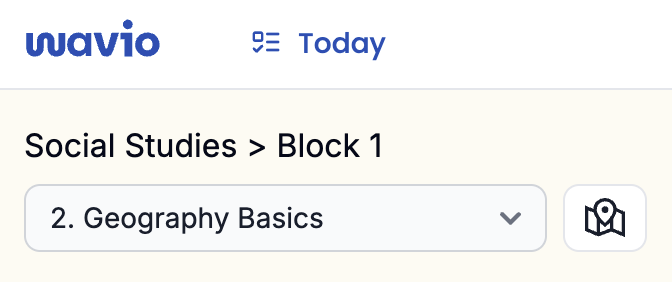
If you’re already browsing the current unit & lesson, the map icon will be grayed out..
Your current activity is indicated by a blue map pin icon:
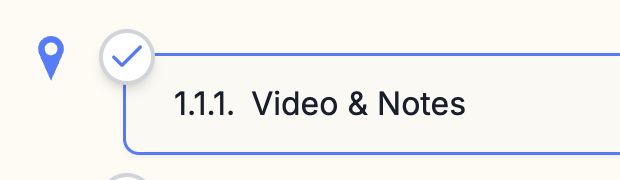
What defines the current activity? #
Pulse shows you what you should be working on next based on the first activity matching any of these rules:
- Your teacher has marked the activity as needing revision.
- Your teacher has marked the activity as a “must-do”.
- You’ve completed all previous “must-do” activities.
Pulse doesn’t prevent you from working on activities out of order, but it always suggests what it thinks you should be working on next.