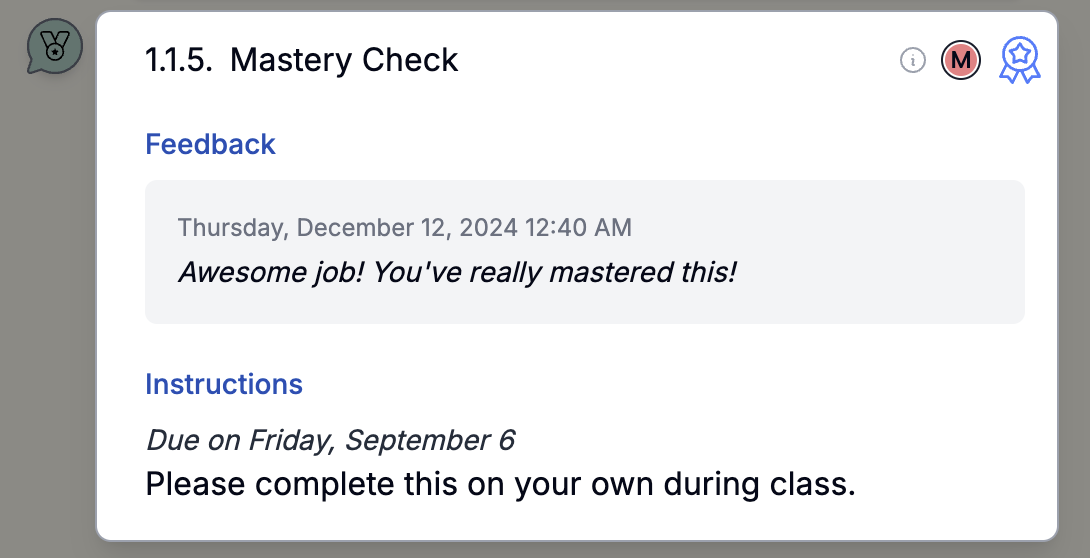
Activities
Each activity bubble shows a summary of the activity:

- A circled “i” icon is displayed to the right of the name, if the activity has a description. Click on the activity to see the details.
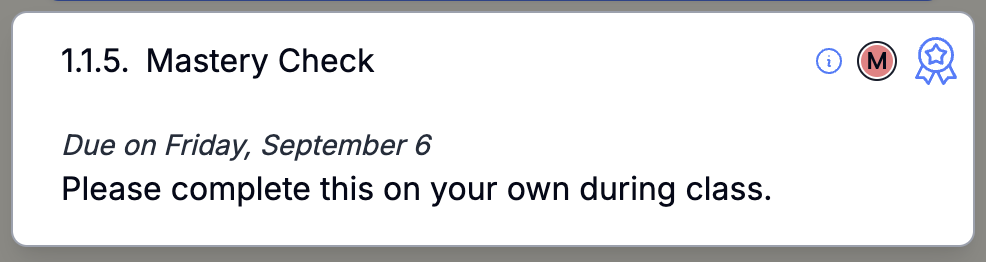
- The requirement level (M for Must, S for Should, A for Aspire) is displayed next.
- If the requirement icon is circled, that means your teacher tracks this activity in the public tracker. Not all activities are tracked.
- The activity type icon to the right of the requirement icon indicates the type of activity (video, assignment, mastery check, etc).
- If the activity type icon is blue, then you can click on it to view links your teacher has provided for the activity. Clicking on a link opens it in a new browser tab.
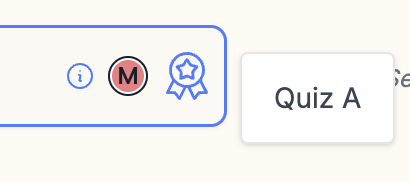
- Tracked activities also have suggested due dates, which are displayed to the right of the activity bubble.
Completing Activities #
To mark an activity as completed, click on the checkmark icon in the upper left corner. Completed actvities are grayed out, but you can still click on them to see details or links.
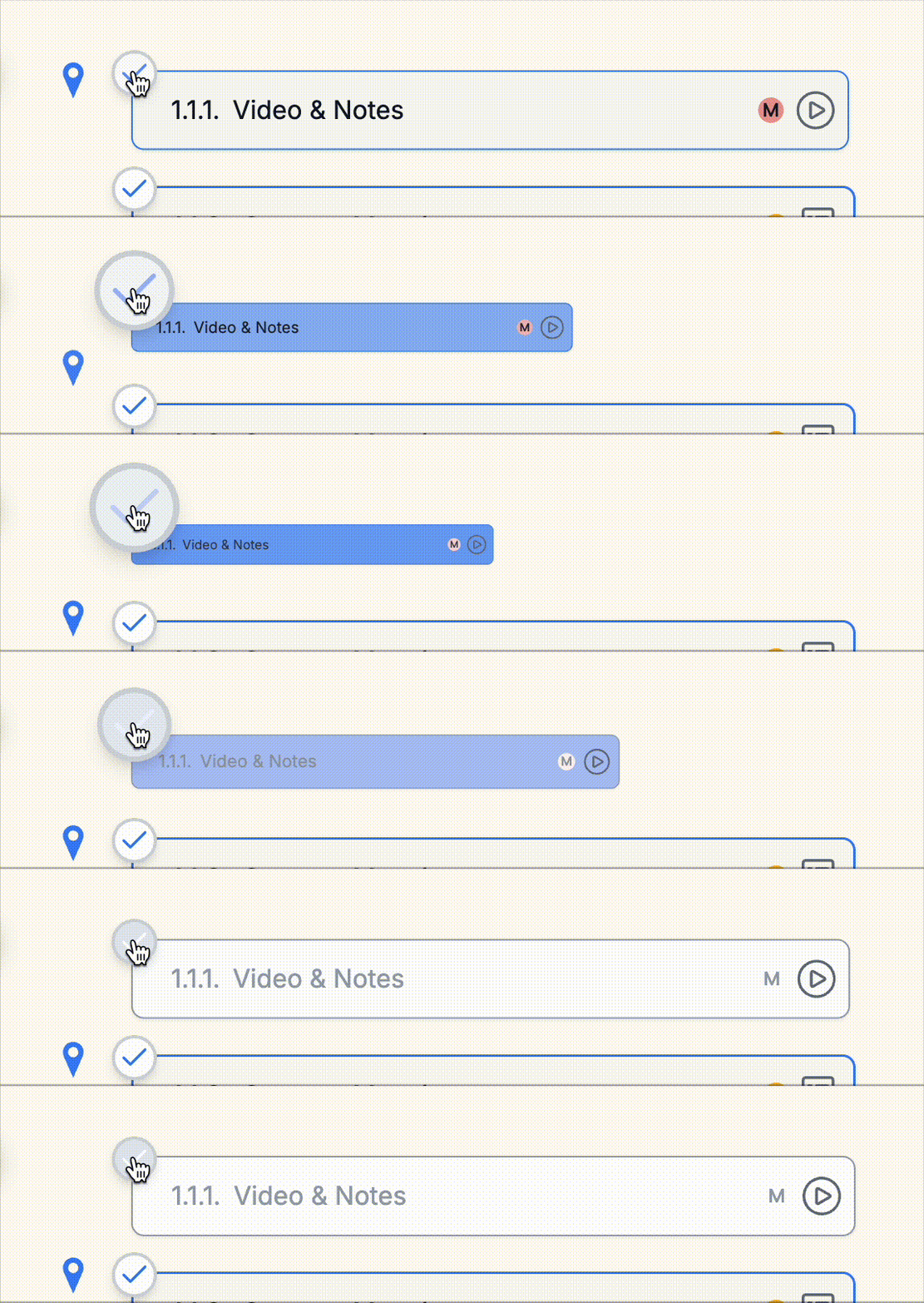
If you accidentally mark an activity as completed, you can un-complete it by clicking on the checkmark again.
Pulse only allows you to complete activities that are in an assigned state. If your teacher has already marked an activity as mastered, expert, or incomplete, then you cannot mark it as completed (or un-completed).
Teacher review #
When you mark a tracked activity as completed, it will show up in your teacher’s view and in the public trackers as needing review. A pending icon is displayed to the left of the activity to indicate this:
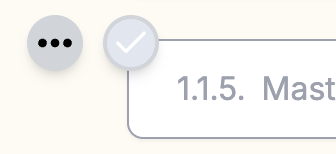
If your teacher marks it as mastered, the icon will turn green. A special icon indicates if your teacher marks you as expert (try clicking on it!). If it needs revision, the icon will turn yellow. Red indicates the activity is marked incomplete.
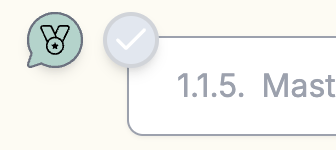
If your teaacher leaves you feedback, the icon will will have a chat bubble around it. Clicking on the icon or on the activity bubble will open the activity details and display the feedback.