
Learners Tracker
The Learners tracker shows provides a table of all student activity. Each student is listed in a row, and each activity is listed in a column. The current on-pace activity (based on due dates) is indicated by an extra on-pace header.
See Student Names for how to customize student name display format and sort order.
To make updates in this view, click on any cell in the table to update a specific student & activity progress. You can “skip” a student to a given activity by clicking on the activity to skip to in the student’s row; this sets any previous incomplete activities for that student to skipped.
You can also update the progress for all students for a specific activity by clicking on the activity header. Similarly, clicking on the activity header also provides an option to “skip” all students to that activity.
Activity Status #
Table cells are colored based on the student’s progress. The background color indicates the assigned status, with an optional icon that provides more detail:
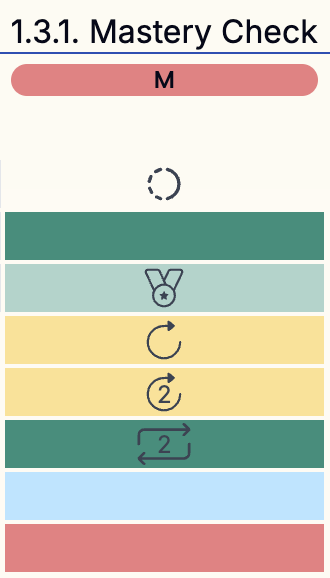
- no color - No progress has been recorded yet.
- no color, with circle icon - This is the next tracked activity that the student is expected to work on.
- green - The student has mastered this activity.
- light green, with expert icon - The student has mastered this activity at an expert level.
- yellow, with redo icon - The student has been assigned to revise this activity.
- yellow, with redo icon & number - The student has been assigned to revise this activity, and the student has already submitted it multiple times.
- green, with redo icon & number - The student has mastered this activity after multiple submissions.
- blue - This activity has been marked as optional for the student.
- red - This activity has been marked as incomplete for the student.
Table cells also indicate when a student has submitted an activity for evaluation. This is indicated when the cell is shaded half gray:

- gray / empty - Indicates a normal submission.
- gray / yellow - Indicates a submission in response to a revision request.
- gray / blue - Indicates a submission for an optional activity.
Note that students may not resubmit activities that are already marked as mastered, expert, or incomplete.
Activities filter #
The activities filter in the upper right corner controls which activities are displayed.
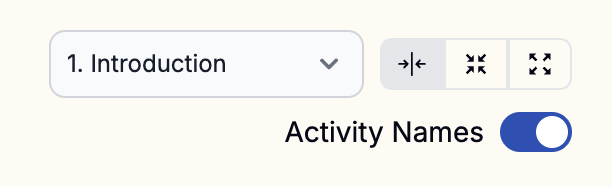
There are three options:
- Unit Activities - (left most option) When this option is selected, a unit drop down is also displayed, allowing you to choose a unit. All activities for the selected unit will be displayed.
- Compact View - (middle option) Displays the activities that students are currently working on, plus the next activity for them to work on, plus any activities in between. If the span of activities is fewer than 5, then additional past activies are also shown to provide context.
- Expanded View - (right most option, default) In additon to the activities shown in the compact view, this view determines the current on-pace activity for the class and includes all activities in the same unit.